Follow these steps to list your product on Sumflur:
Step 1 — Login to Seller Account
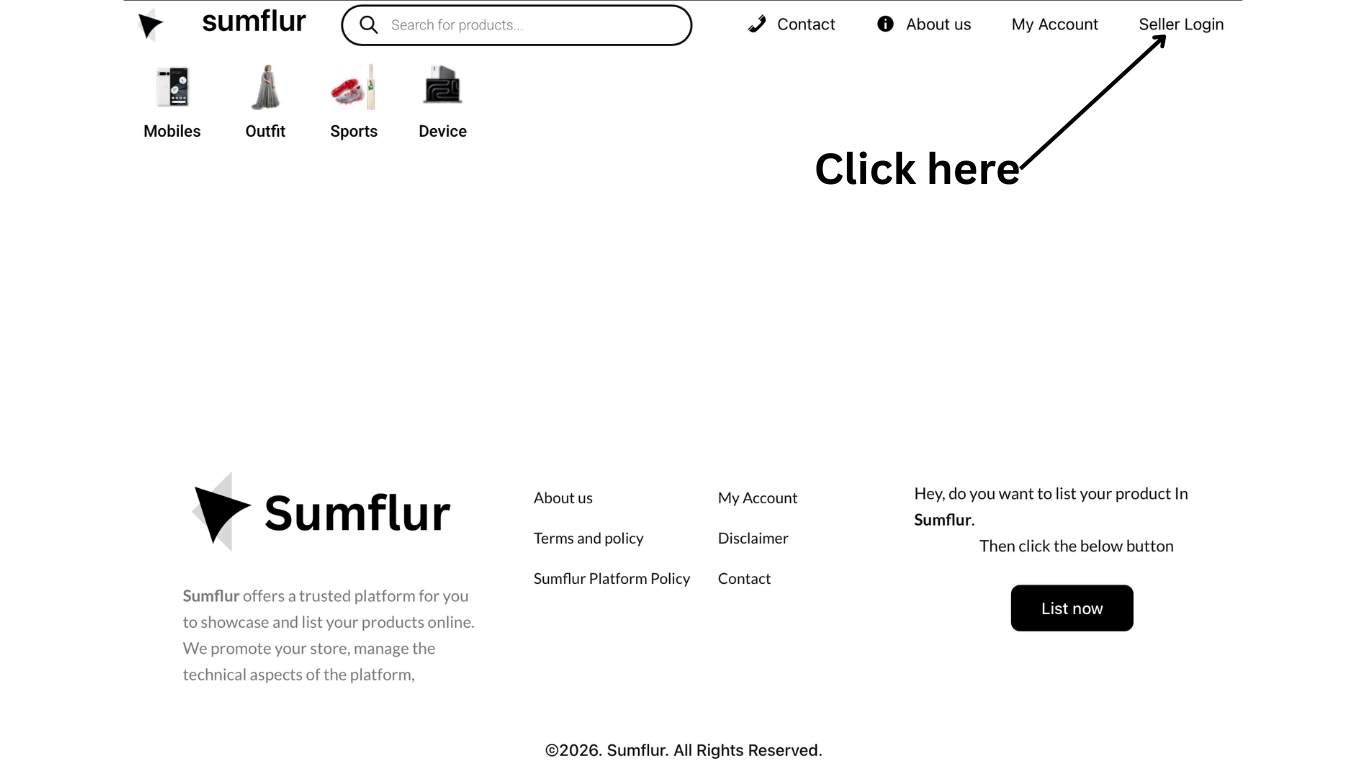
Go to the Sumflur website.
Click Seller Login (top right corner).
Enter your login details.
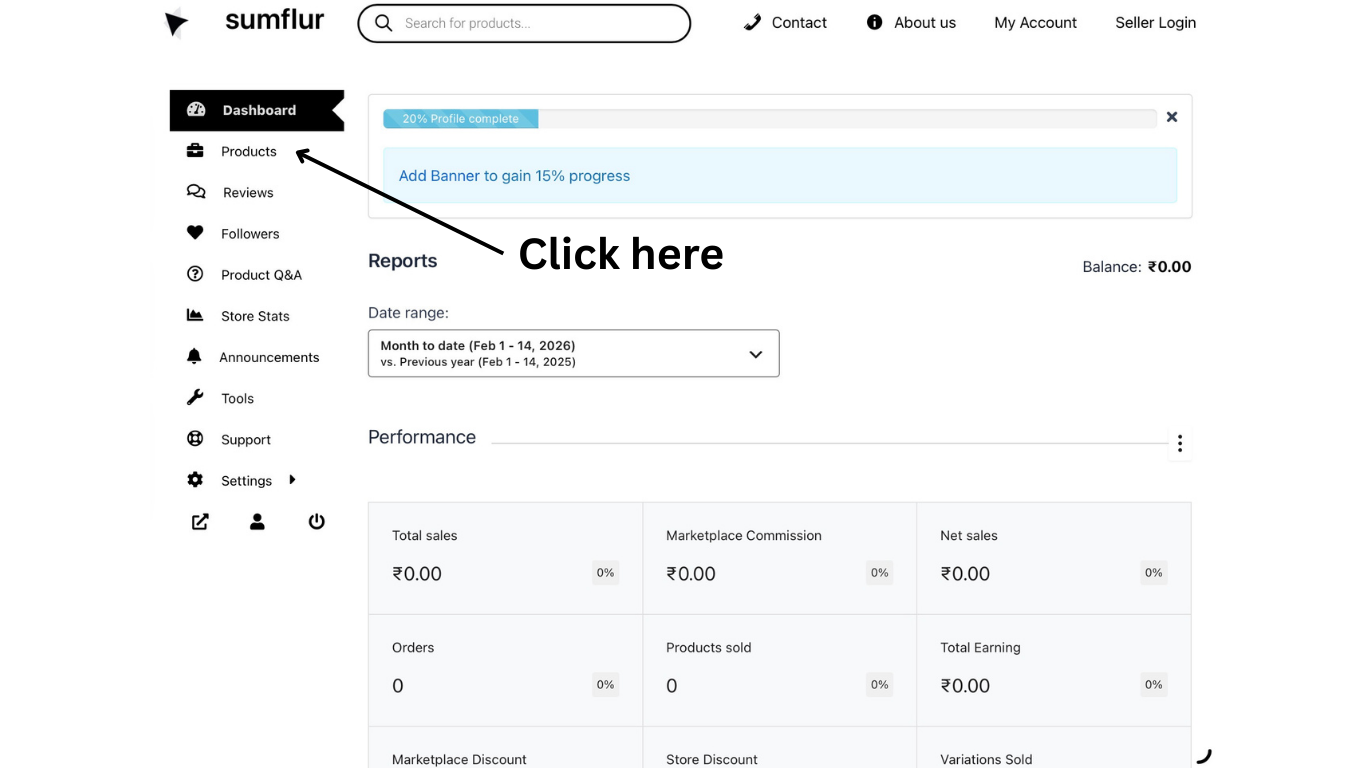
After login, you will reach the Seller Dashboard.
Step 2 — Open Products Section
In the left sidebar, click Products.
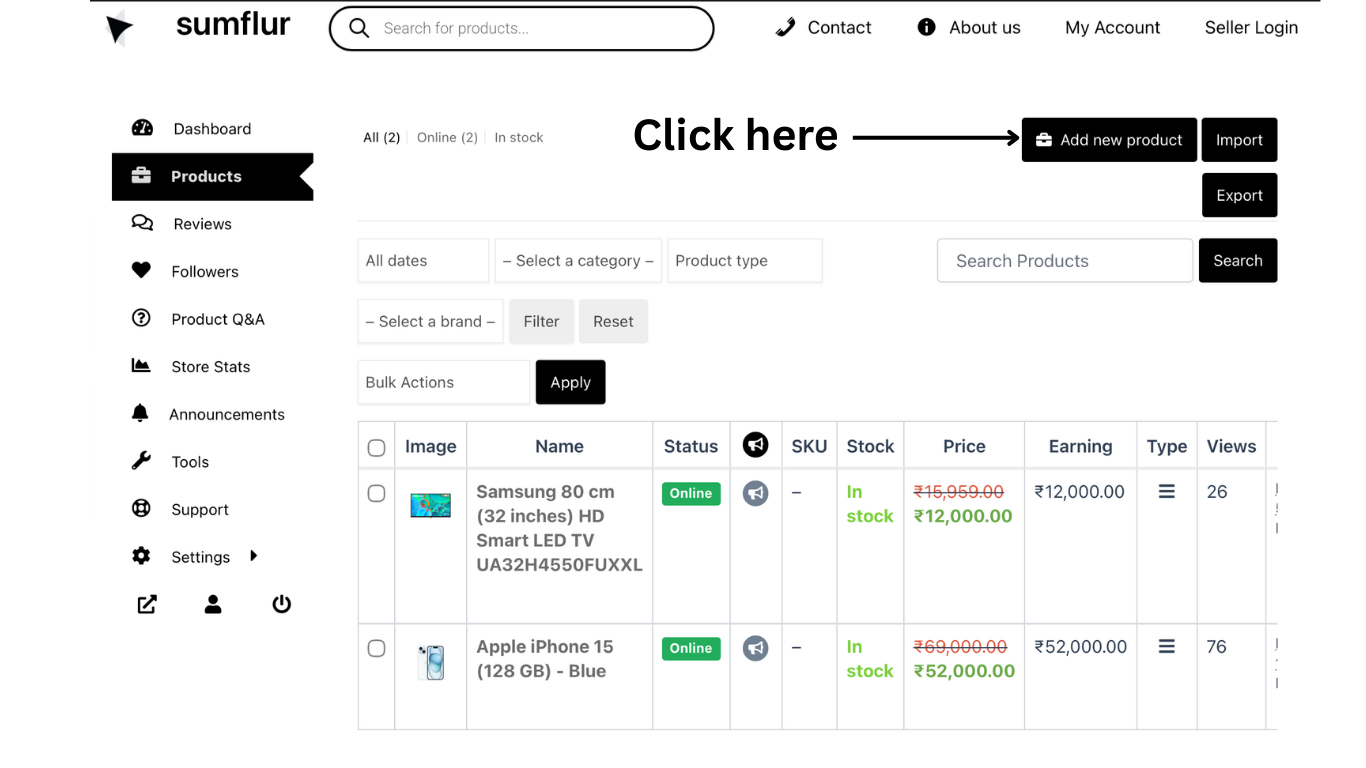
This will open your product list page.
Here you can see existing products (if any).
Step 3 — Add New Product
Click the Add New Product button (top right).
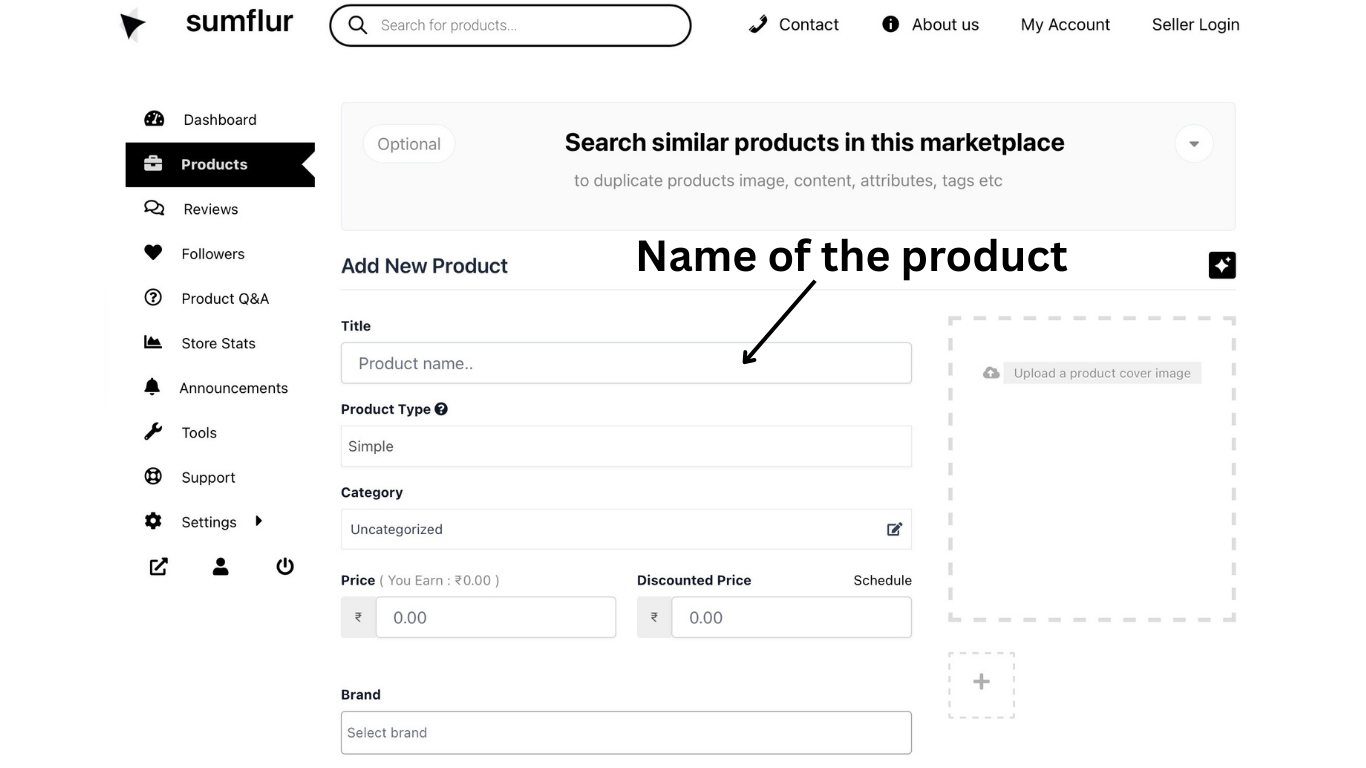
Product creation page will open.
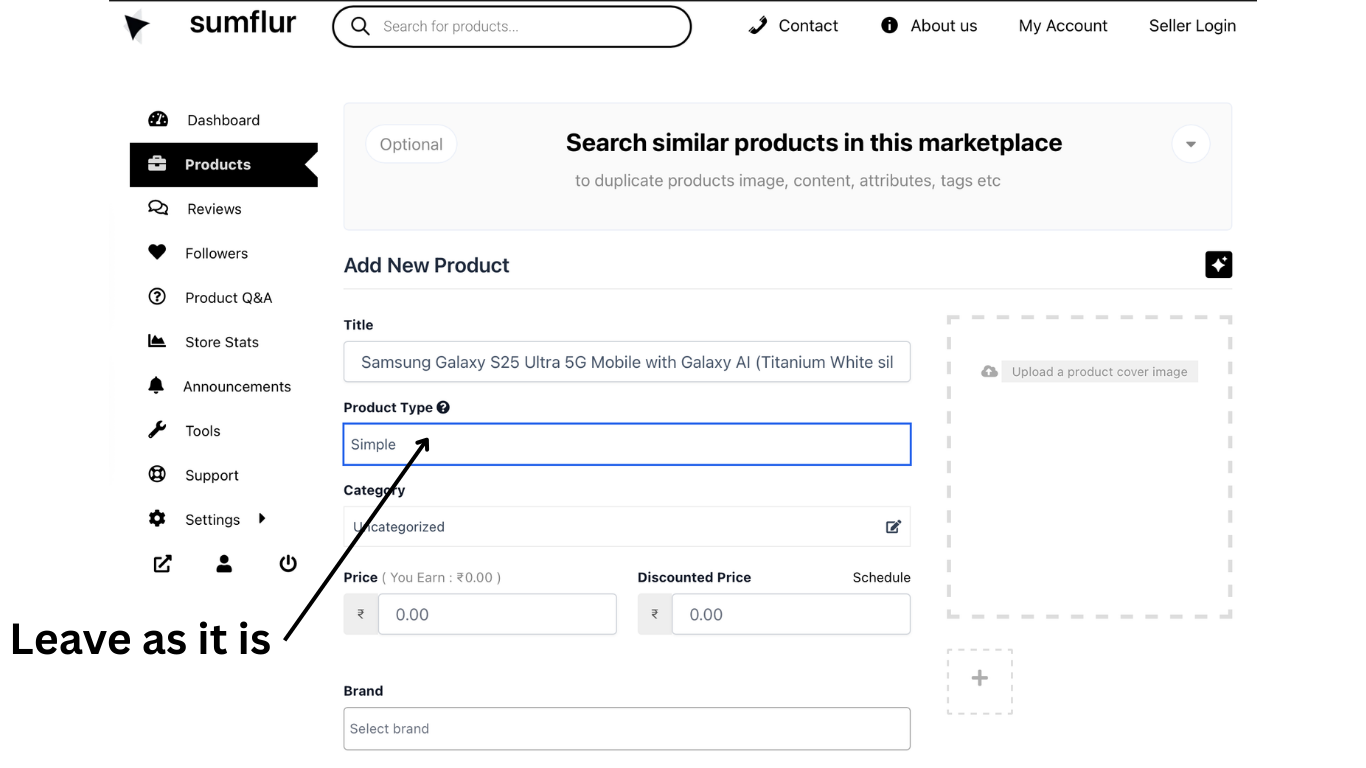
Step 4 — Enter Product Name
In the Title field, type your product name.
Example: Samsung Galaxy S25 Ultra 5G Mobile with Galaxy AI
Step 5 — Product Type
Leave Product Type = Simple (default).
No need to change unless it is a variable product.
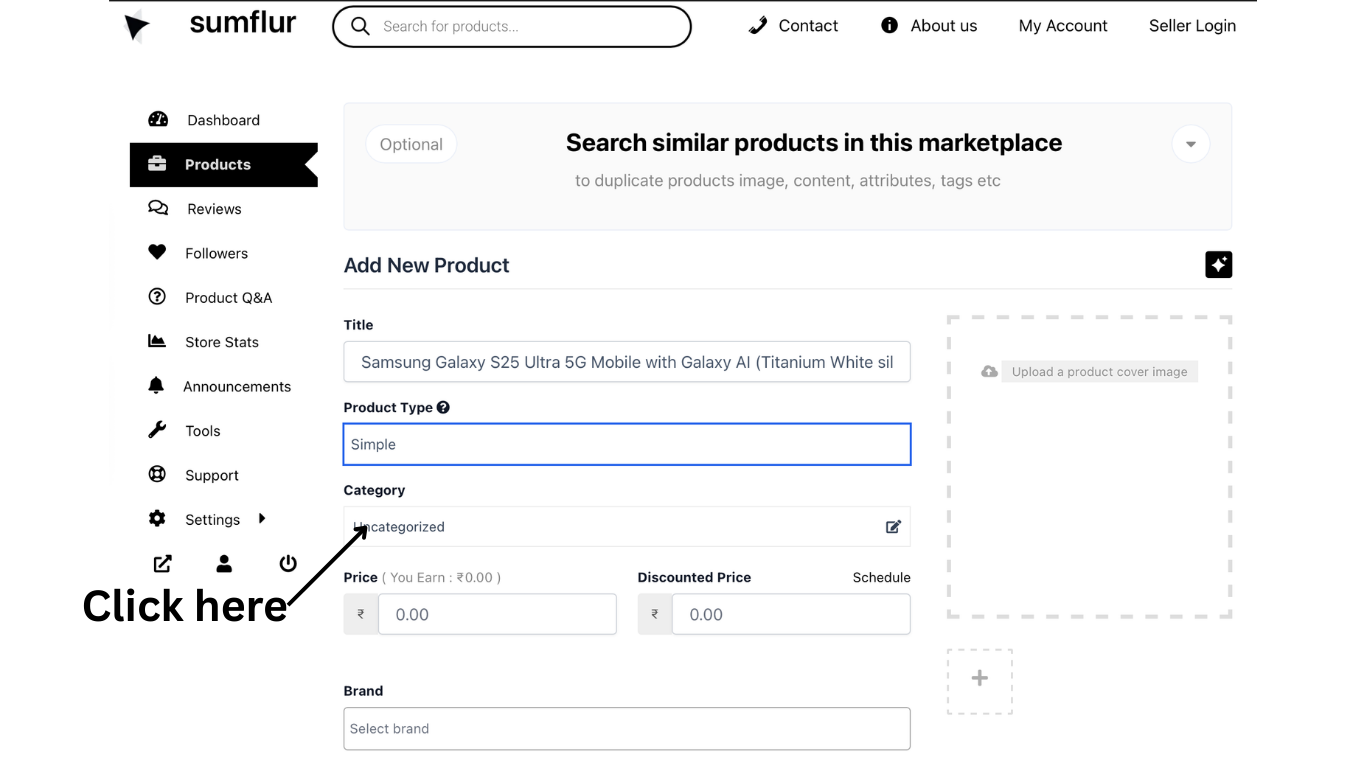
Step 6 — Select Category
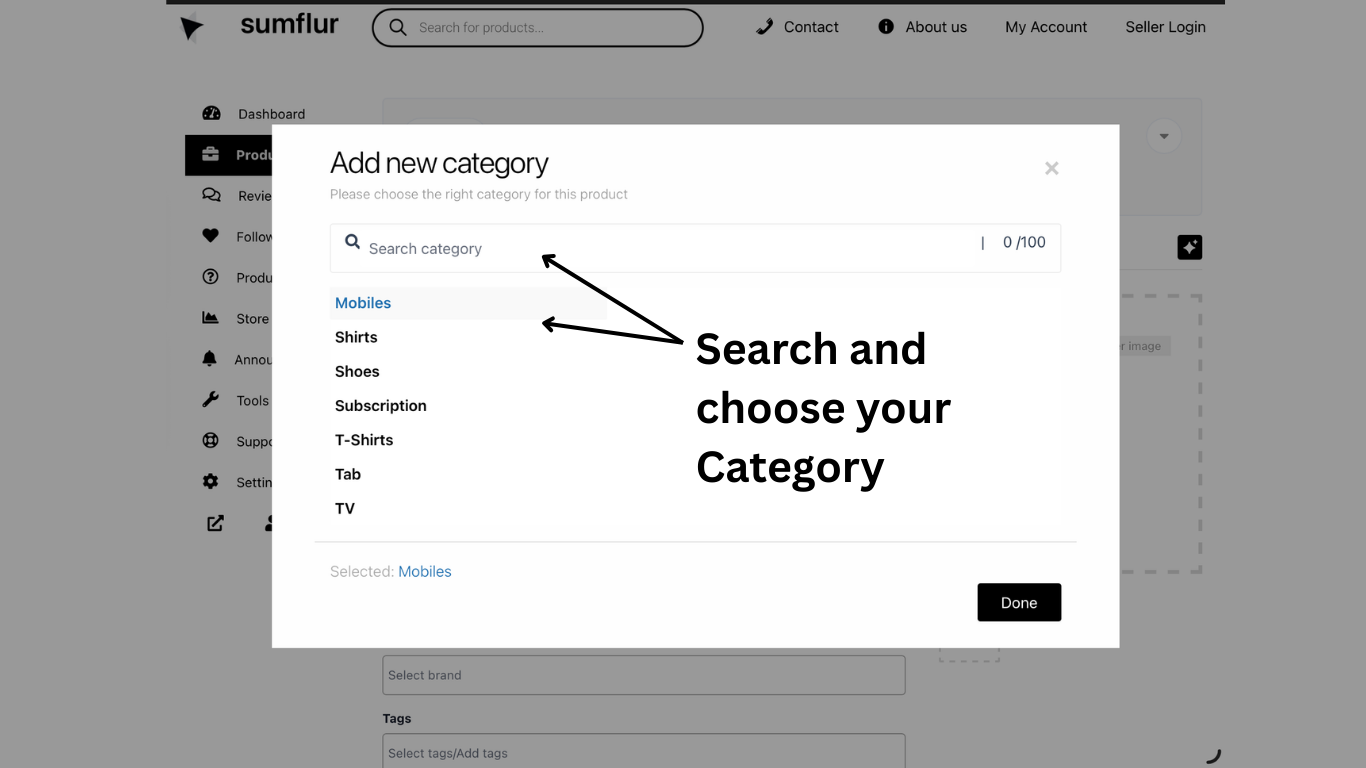
Click the Category field.
A popup will open.
Search or select the correct category.
Example: Mobiles, Shirts, Shoes, TV, etc.
Click Done after selecting.
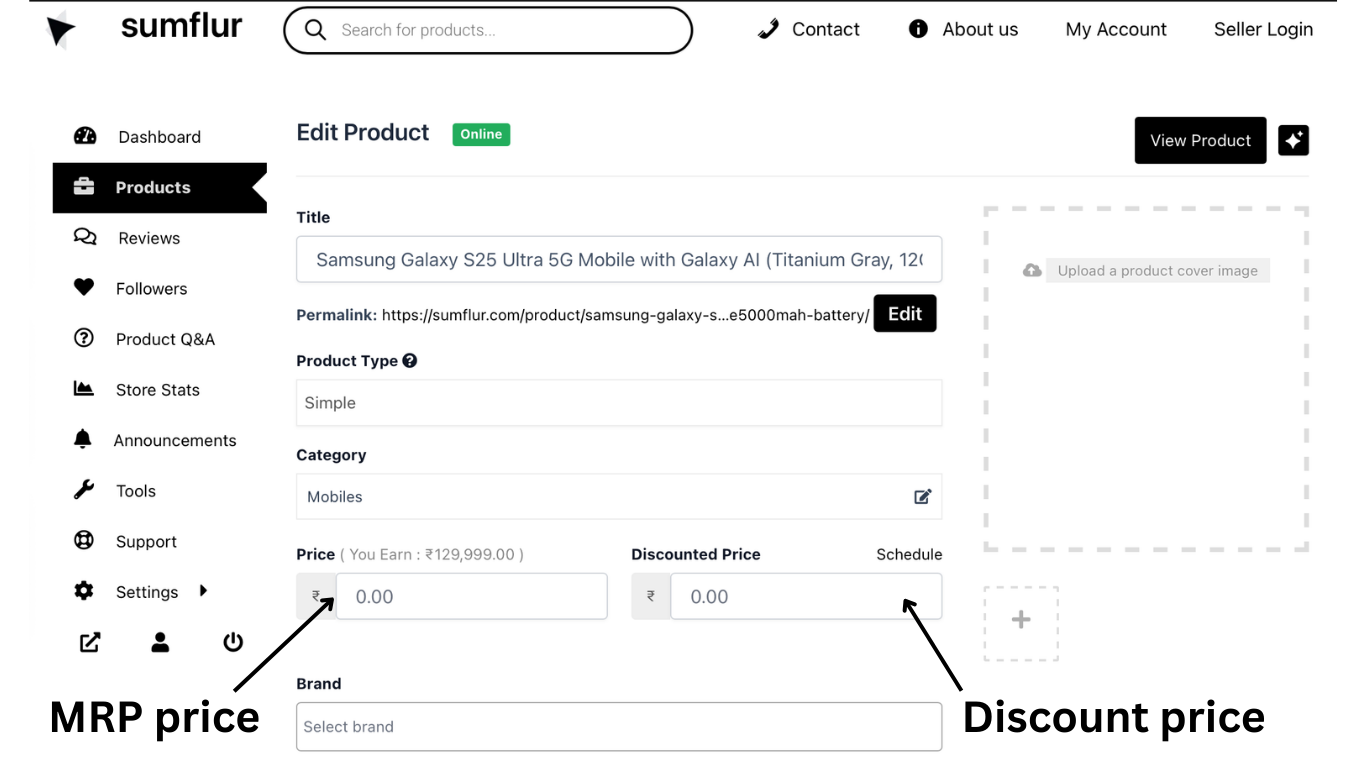
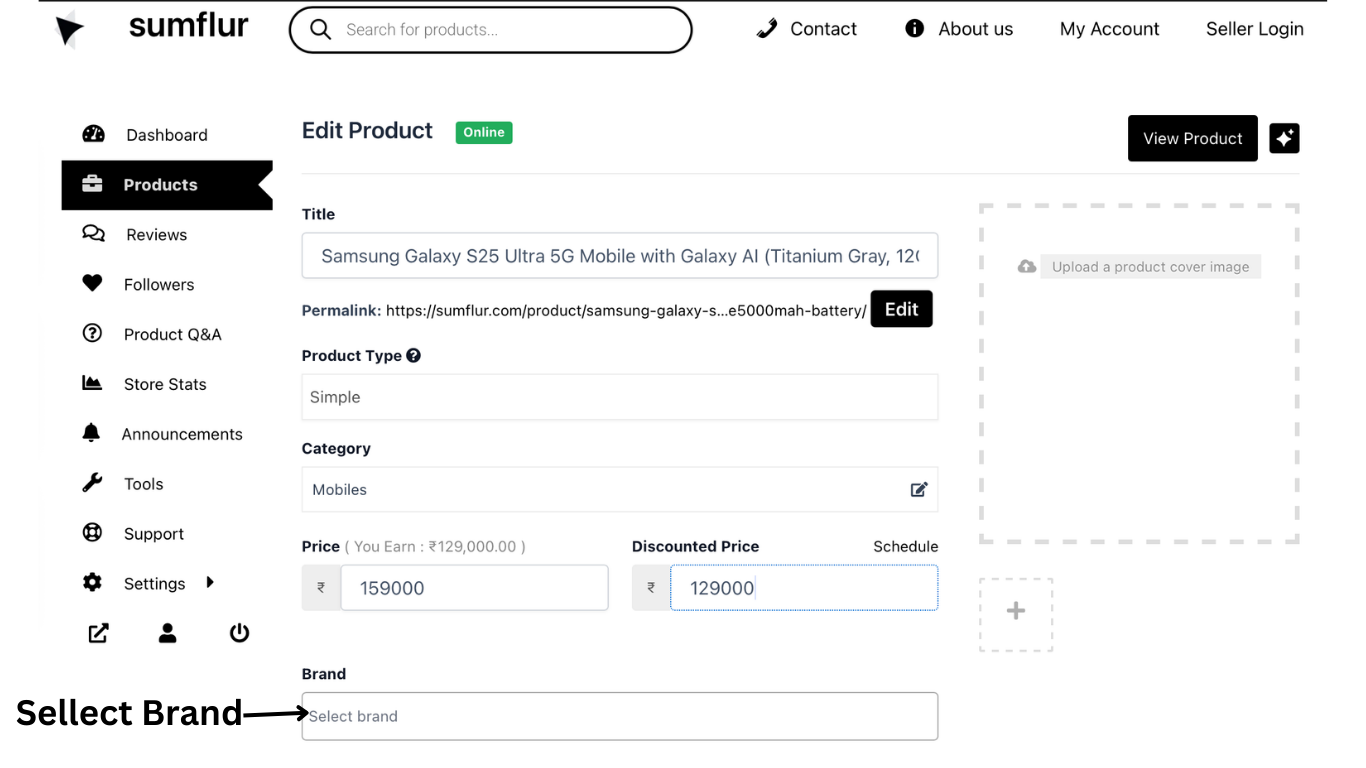
Step 7 — Enter Price
You will see two price fields:
1️⃣ MRP Price
Enter the original price.
2️⃣ Discounted Price
Enter the selling price.
Example:
MRP: ₹159,000
Discount Price: ₹129,000
Step 8 — Select Brand
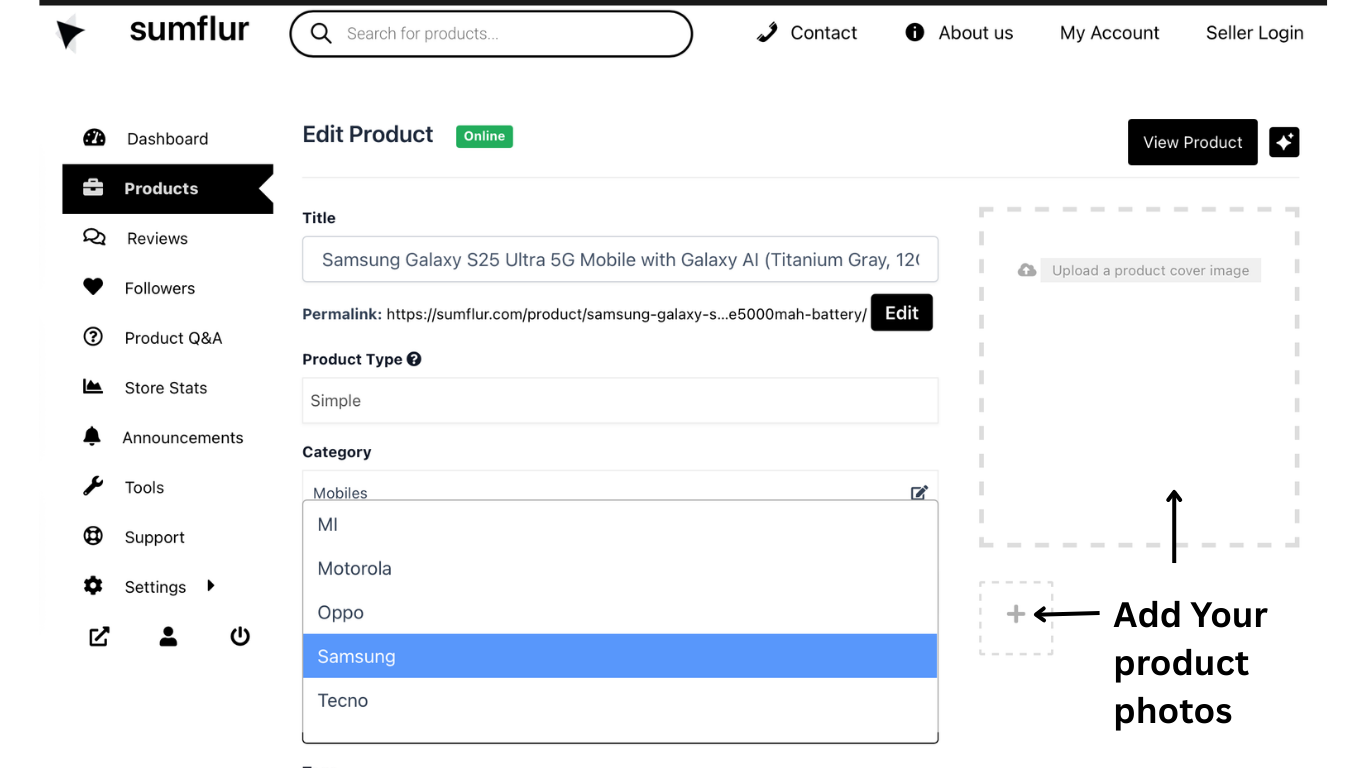
Click Select Brand dropdown.
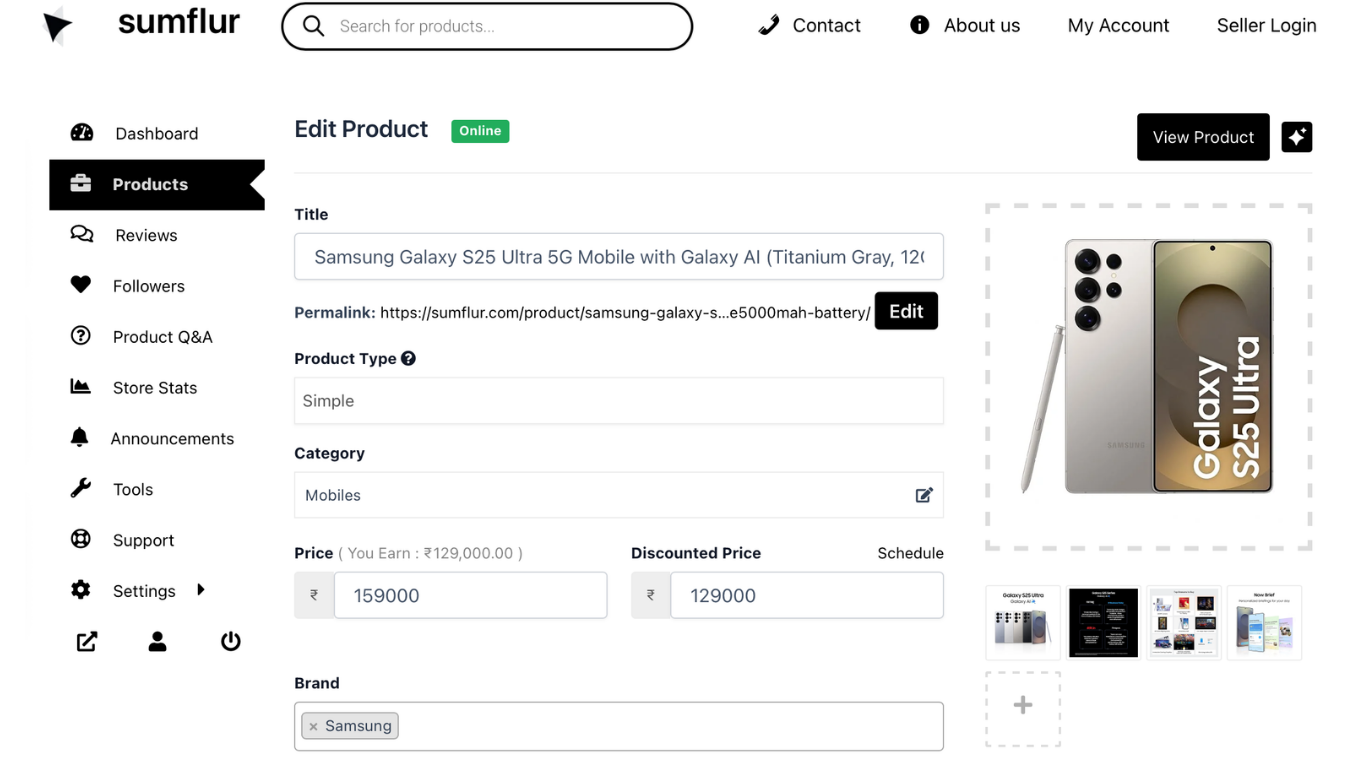
Choose the correct brand
Example: Samsung, MI, Oppo, Motorola, etc.
Step 9 — Upload Product Images
Click the + icon or upload box.
Add product cover image.
Upload multiple product photos.
Ensure images are clear and high quality.
Step 10 — Add Tags (Optional)
Enter product tags to improve search.
Example: 5G Mobile, Samsung Phone, Galaxy S25
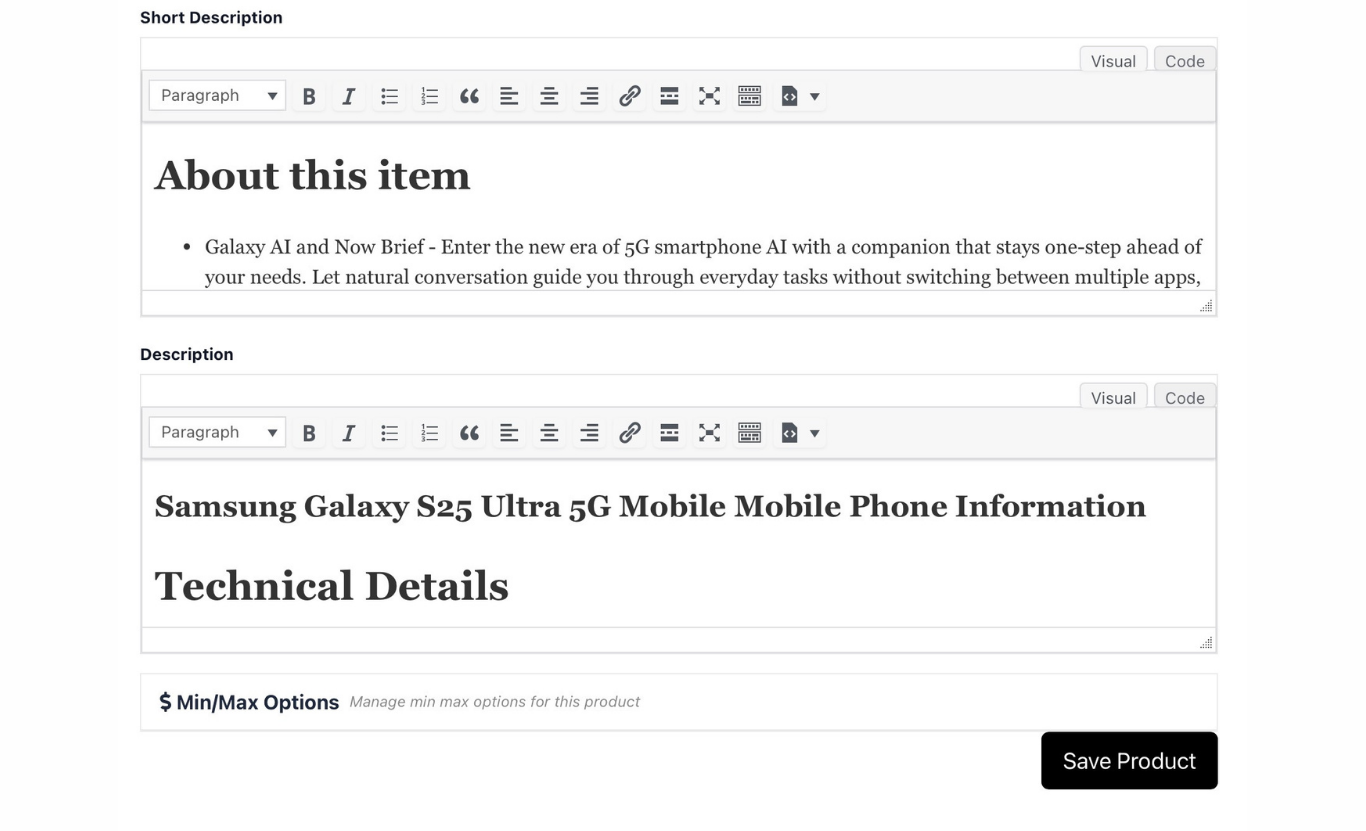
Step 11 — Short Description
Write a brief summary of the product.
Example:
About this item
Galaxy AI powered smartphone
Advanced camera system
Long-lasting battery
5G connectivity
Keep it short and highlight key features.
Step 12 — Full Description
Write detailed product information.
Include:
Technical details
Specifications
Features
Warranty info
Box contents
Example sections:
Product Overview
Technical Details
Display
Camera
Battery
Processor
Before submitting, quickly review all product details like name, category, price, brand, images, and descriptions to ensure everything is correct.
Once confirmed, click the Save Product button to publish your listing. Your product will go live or move to admin review based on platform approval settings.